View Alerts
Alerts notify you when a View's data meets specific conditions, enabling proactive monitoring.
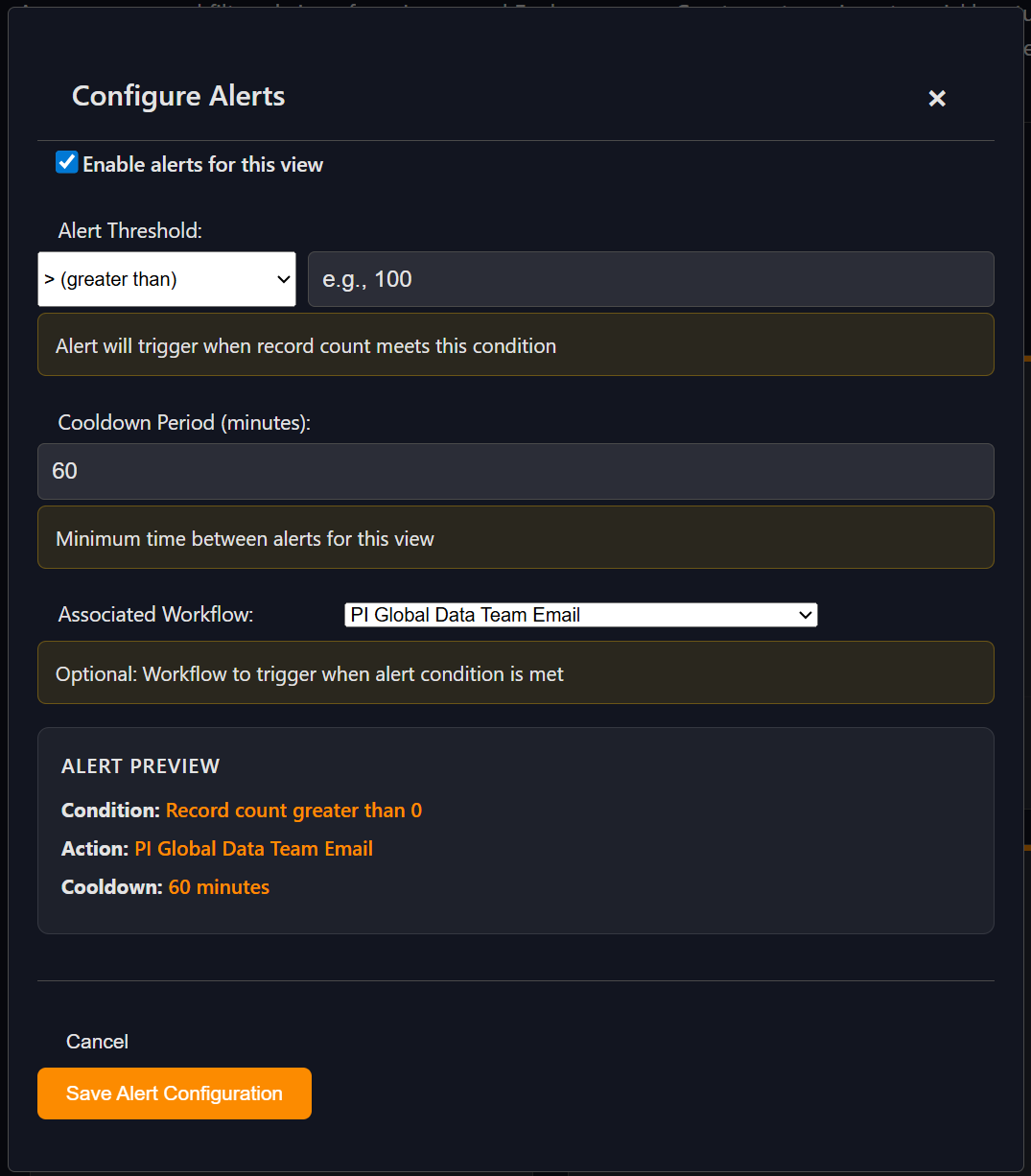
Setting Up Alerts
- Open Alert Configuration: Click the bell icon on any View card you own
- Enable Alerts: Check "Enable alerts for this view"
- Configure Threshold: Set the condition that triggers the alert:
- Operator: Choose from >, >=, <, <=, =, or ≠
- Threshold Value: Enter the number to compare against
- Example: Alert when record count > 100
- Set Cooldown Period: Specify minimum time between alerts (default: 60 minutes)
- Optional Workflow: Connect a workflow to execute when alerts trigger
Alert Conditions
Alerts are based on the total record count returned by your View's filters:
- Issues Views: Alerts trigger based on the number of issues found
- Explorer Views: Alerts trigger based on the number of assets found
Common Alert Scenarios
- High Issue Count: Alert when critical issues exceed a threshold
- Asset Monitoring: Alert when monitored assets drop below expected counts
- System Health: Alert when error conditions exceed normal levels
- Compliance Monitoring: Alert when non-compliant assets are detected
Alert Preview
The alert configuration form shows a preview of your settings:
- Condition: Summary of your threshold setting
- Action: What happens when the alert triggers
- Cooldown: Time between potential alerts