Power BI Integration Guide
Overview
Tycho Data platform provides RESTful API endpoints that can be directly consumed by Microsoft Power BI for creating rich dashboards and reports. This integration allows you to visualize and analyze your operational data, assets, issues, and labels in Power BI without requiring data exports or intermediate data stores.
Why Use Power BI with Tycho Data APIs?
Benefits
- Real-time Data: Connect directly to live operational data without manual exports
- Rich Visualizations: Leverage Power BI's advanced charting and dashboard capabilities
- Automated Refresh: Schedule automatic data refreshes to keep dashboards current
- Enterprise Integration: Combine Tycho Data with other enterprise data sources
- Self-Service Analytics: Enable business users to create their own reports and dashboards
Use Cases
- Asset Performance Dashboards: Monitor asset health, status, and relationships
- Issue Tracking Reports: Analyze data quality issues and trends over time
- Operational KPIs: Create executive dashboards showing system health metrics
- Compliance Reporting: Generate automated reports for audit and compliance needs
Prerequisites
Before connecting Power BI to Tycho Data APIs, ensure you have:
- Power BI Desktop installed (or Power BI Service access)
- API Access Token from your Tycho Data platform
- API Endpoint URLs for the data you want to visualize
How to Obtain API Endpoints
Discovery Methods
- API Documentation: Visit https://experience.tychodata.com/docs for complete API reference
- Interactive Documentation: Use the built-in Swagger/OpenAPI interface
- Common Endpoints: Most data endpoints follow the pattern
/api/v1/{resource}
Available GET Endpoints
/api/v1/assets- Asset/explorer data/api/v1/issues- Data quality issues and checks/api/v1/labels- Label definitions and metadata/api/v1/use-cases- Business use case definitions
Step-by-Step Connection Guide
Step 1: Obtain Your API Token
- Log into your Tycho Data platform
- Navigate to User Settings or Profile
- Generate or copy your API Token
- Store this token securely - you'll need it for authentication
Step 2: Open Power BI Desktop
- Launch Power BI Desktop
- Click Get Data from the Home ribbon
- Select Web from the data sources list
- Click Connect
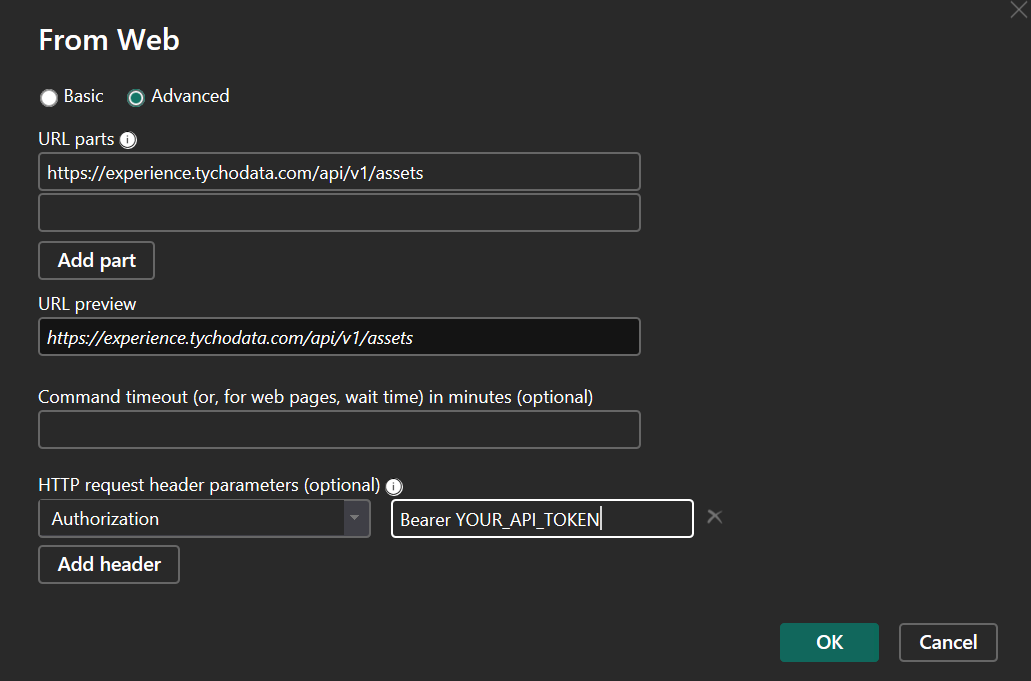
Step 3: Configure the API Connection
Basic Configuration
-
URL Field: Enter your API endpoint
https://experience.tychodata.com/api/v1/assets -
Advanced Options: Click Advanced to configure authentication
Authentication Setup
- HTTP Request Header Parameters:
- Name:
Authorization -
Value:
Bearer YOUR_API_TOKEN_HERE -
Authentication Method: Select Anonymous (Authentication is handled via the Bearer token in headers)
-
Privacy Level: Choose Organizational or Public based on your data governance policies
Step 4: Data Import and Transformation
- Preview Data: Power BI will show a preview of the JSON response
- Transform Data: Click Transform Data to open Power Query Editor
- Expand JSON: Use Power Query to expand nested JSON objects into columns
- Apply Changes: Click Close & Apply to load the data
Example: Connecting to Assets Endpoint
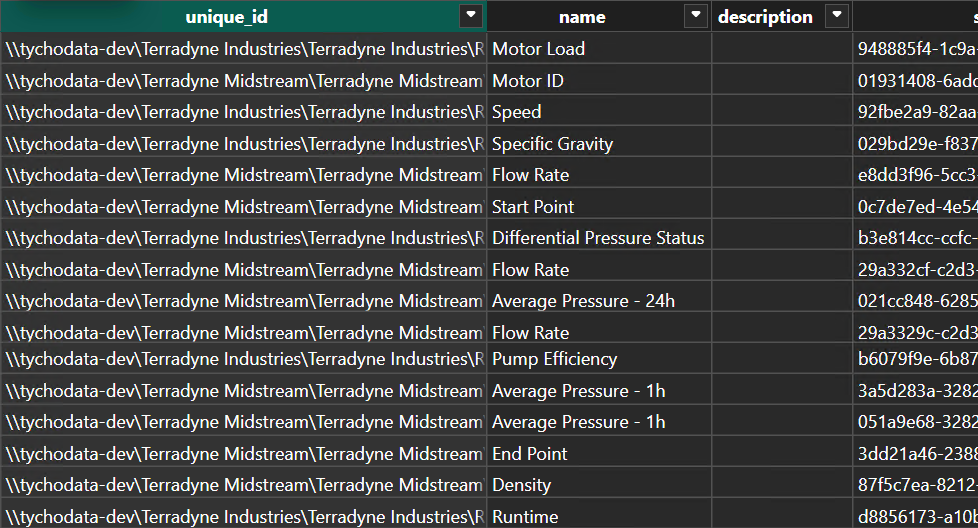
Power Query M Code Example
let
    Source = Json.Document(
        Web.Contents(
            "https://experience.tychodata.com/api/v1/assets",
            [
                Query = [limit="5000"],
                Headers = [Authorization="Bearer YOUR_API_TOKEN_HERE"]
            ]
        )
    ),
    data = Source[data],
    pagination = Source[pagination],
    #"Converted to Table" = Table.FromList(data, Splitter.SplitByNothing(), null, null, ExtraValues.Error),
    #"Expanded Asset Data" = Table.ExpandRecordColumn(
        #"Converted to Table",
        "Column1",
        {
            "id", "name", "unique_id", "type", "source_system",
            "source_subsystem", "description", "status", "blast_radius",
            "use_cases", "labels", "created_time", "last_updated"
        }
    ),
    #"Expanded Use Cases" = Table.ExpandListColumn(#"Expanded Asset Data", "use_cases"),
    #"Expanded Labels" = Table.ExpandListColumn(#"Expanded Use Cases", "labels")
in
    #"Expanded Labels"
Expected Response Structure
{
  "data": [
    {
      "id": 123,
      "name": "Temperature_Sensor_001",
      "unique_id": "TS001",
      "type": "tag",
      "source_system": "PI_System",
      "source_subsystem": "Plant_A",
      "description": "Temperature sensor for reactor 1",
      "status": "Active",
      "blast_radius": 15,
      "use_cases": ["Production", "Safety"],
      "labels": ["Critical", "Reactor"],
      "created_time": "2025-01-15T08:30:00",
      "last_updated": "2025-08-21T14:30:00"
    }
  ],
  "pagination": {
    "skip": 0,
    "limit": 1000,
    "total": 5420,
    "returned": 1000
  }
}
Query Parameters and Filtering
Common Parameters
limit: Maximum records to return (1-10,000)skip: Number of records to skip for paginationsort_by: Field to sort bysort_order:ascordesc
Filtering Examples
# Filter by asset type
https://experience.tychodata.com/api/v1/assets?asset_type=tag&limit=1000

# Filter by source system
https://experience.tychodata.com/api/v1/assets?source_system=PI_System&limit=1000

# Multiple filters
https://experience.tychodata.com/api/v1/assets?asset_type=tag&status=Active&limit=1000
Data Refresh Configuration
Scheduled Refresh
- Publish to Power BI Service: Upload your report to Power BI Service
- Configure Credentials: Set up the API token in the data source credentials
- Schedule Refresh: Configure automatic refresh intervals (daily, hourly, etc.)
Gateway Requirements
- On-premises Gateway: Required if Tycho Data is hosted on-premises
- Personal Gateway: Sufficient for individual user access
- Enterprise Gateway: Recommended for organization-wide deployments
Troubleshooting
Common Issues and Solutions
1. Authentication Errors
Error: "401 Unauthorized" or "403 Forbidden"
Solutions:
- Verify your API token is correct and not expired
- Ensure the token has proper permissions for the endpoint
- Check that the Authorization header format is exactly: Bearer YOUR_TOKEN
- Confirm you're using "Anonymous" authentication in Power BI
2. Data Loading Issues
Error: "DataSource.Error" or timeout issues
Solutions:
- Reduce the limit parameter (try 1000 instead of 10000)
- Add specific filters to reduce dataset size
- Check your network connectivity to the Tycho Data platform
- Verify the endpoint URL is correct and accessible
3. JSON Parsing Errors
Error: "Expression.Error" when expanding JSON
Solutions: - Check that the API is returning valid JSON - Use Power Query's JSON viewer to inspect the response structure - Ensure you're expanding the correct JSON properties - Handle null values appropriately in your transformations
4. Performance Issues
Symptoms: Slow loading, timeouts, memory errors
Solutions:
- Implement pagination using skip and limit parameters
- Use specific filters to reduce data volume
- Consider incremental refresh for large datasets
- Monitor API rate limits and usage
Testing Your Connection
Quick Validation with cURL
Before configuring Power BI, test your endpoint and token:
curl -H "Authorization: Bearer YOUR_API_TOKEN" \
  "https://experience.tychodata.com/api/v1/assets?limit=10"
Power BI Connection Test
- Start with a simple endpoint like
/api/v1/labels - Use a small limit (e.g.,
limit=10) for initial testing - Verify authentication works before adding complex filters
- Test data transformation logic with a subset of data
Error Logging and Diagnostics
Power BI Diagnostics
- Enable Query Diagnostics in Power Query Editor
- Review Applied Steps for transformation errors
- Check Data Source Settings for authentication issues
API Response Validation
- Verify JSON structure matches expected schema
- Check for rate limiting or quota exceeded responses
- Monitor API response times and status codes
Best Practices
Performance Optimization
- Use Pagination: Always set appropriate
limitvalues - Implement Filtering: Use query parameters to reduce data volume
- Incremental Refresh: For large datasets, configure incremental refresh
- Optimize Queries: Only select necessary columns and apply filters early
Security Considerations
- Token Management: Store API tokens securely and rotate regularly
- Access Control: Use least-privilege principles for API access
- Data Privacy: Be mindful of sensitive data in reports and dashboards
- Gateway Security: Properly configure and secure data gateways
Data Governance
- Documentation: Document data sources, transformations, and business logic
- Version Control: Maintain versions of your Power BI reports and queries
- Data Lineage: Track data flow from Tycho Data APIs to final reports
- Validation: Implement data quality checks and validation rules
Support and Resources
Additional Documentation
Getting Help
- API Issues: Contact Tycho Data support for endpoint or authentication problems
- Power BI Issues: Consult Microsoft Power BI documentation and community forums
- Integration Issues: Review this guide and check common troubleshooting steps