Asset
Assets -- Understanding What's Behind Your Data
Learning Goals
By the end of this section, you will be able to:
- Understand what an asset represents in Osprey
- Navigate an asset page and interpret key information
- Explore lineage to trace data flow and dependencies
- Configure and review data quality checks
- Use conversations, workflows, and revisions to collaborate and track changes
Overview
Assets represent the core building blocks of your operational data -- sensors, calculations, and displays scanned directly from the PI System. Each asset in Osprey tells a story: where data originates, how it's transformed, and how it's used across your plant or facility.
The Asset Page is where that story comes together. It centralizes technical details, governance context, and collaboration tools -- giving you complete visibility into the data's life cycle.
Exploring the Asset Page
Each asset page in Osprey includes multiple sections designed to give you both context and control.
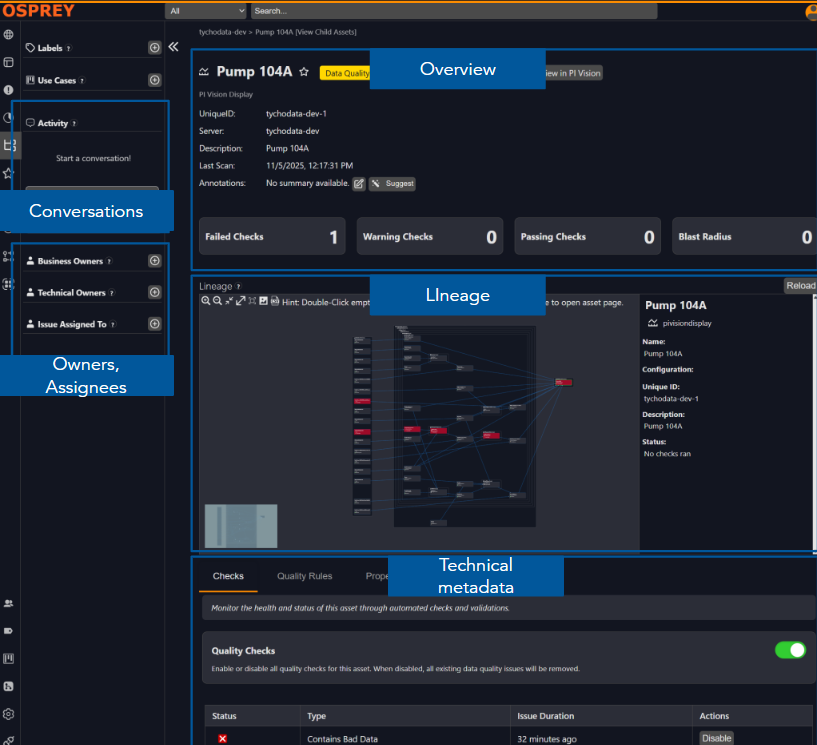
Conversations
Every asset has its own conversation thread, allowing engineers, analysts, and operators to collaborate directly in context. Use this space to document findings, discuss issues, and capture tribal knowledge about the asset. Conversations stay linked to the asset -- preserving history for future reference.
Owners and Assignees
Ownership brings accountability. Each asset displays its owner, who is responsible for stewardship, and the assignee for any open issues. This ensures clear responsibility for maintaining data quality and responding to problems.
Overview
The Overview section contains core details such as the asset name, type, description, and any annotations. It provides a concise summary of what the asset represents -- whether it's a PI tag, an AF analysis, or a PI Vision display -- and its role in your data ecosystem.
Lineage
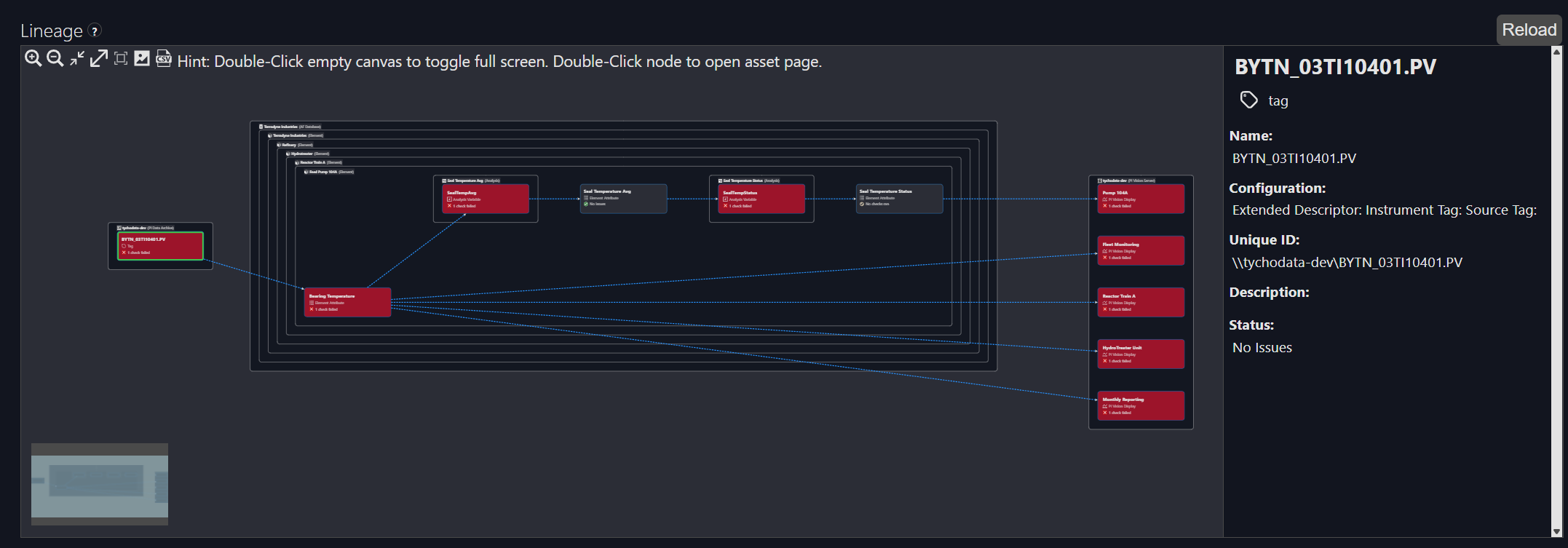
Lineage visualizes data flow -- showing both where the data is coming from and what other assets depend on it. This feature helps you quickly identify upstream sources when investigating data issues, and downstream dependencies that could be impacted by a change. Lineage is foundational for diagnosing cascading failures and understanding the broader operational context of an asset.
Technical Information
The Technical Information section provides detailed insight into the asset's structure and configuration. Here you can:
- Checks: View all data quality checks that run on this asset
- Quality Rules: Define and manage custom checks tailored to your operational standards
- Properties: Inspect metadata such as tag configuration, engineering units, and limits
- Data Profile: Review the data profile, including summary statistics like average, min, max, and data weight
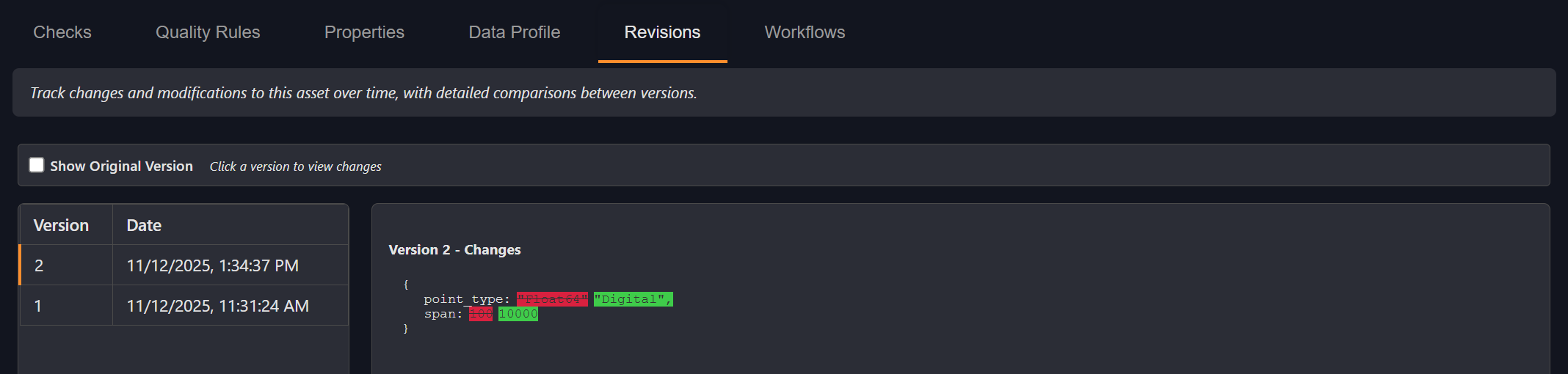
- Revisions: Record every change to an asset's metadata -- including edits to configuration or naming
- Workflows: Define what happens when an asset's status changes or issue is reported. They trigger notifications or automatic ticket creation.
Your Turn
Now it's time to explore Osprey's asset features hands-on. Follow the steps below:
- From the top search bar, type "Pump 104A"
- Filter the asset type to PI Vision Display
- Click on the Pump 104A result to open the asset page
- Post a message in the Conversation section describing what you're investigating
- Review the failed checks listed under Technical Information
- Explore the Lineage view to see where the data for this display originates and which assets depend on it
- Configure a new custom check for tag BYTN_03TI10401.PV that flags when the value is outside its expected range
- Hint: Set the condition as
min > zeroandmax < zero + span

Take your time to review how these features connect -- governance, collaboration, and technical validation -- all in one view.
Knowledge check
As you complete the exercise, consider the following questions:
-
How many tags or attributes are directly referenced by the display?
How many are indirectly referenced through linked analyses or templates? -
What happens when you report an issue?
Which workflow triggers, and how is ownership assigned? -
Were there any changes to the "Seal Temperature Avg" analysis referenced from the PI Vision display Pump 104A?
What do the revision details tell you about when or why it changed? -
Investigate why tag BYTN_03TI10401.PV has bad data.
What do the failed checks or lineage view reveal about its source?