Data Export
Overview
The Data Export feature in Osprey allows you to extract and download data from your connected PI systems and databases. This powerful capability enables you to create backup copies of your asset metadata, perform external analysis, migrate data to other systems, or share specific datasets with stakeholders who need offline access.
Purpose of Data Export
Data Export serves several critical business functions:
Data Backup and Archival
- Create local copies of your PI system metadata for disaster recovery
- Archive historical asset configurations for compliance requirements
- Maintain offline backups of critical system information
External Analysis and Reporting
- Export data for use in specialized analytics tools like Excel, Power BI, or Tableau
- Share datasets with consultants or third-party analysis services
- Create custom reports using external business intelligence platforms
System Migration and Integration
- Extract data when migrating between PI systems or versions
- Prepare datasets for integration with other industrial software platforms
- Support data transformation projects and system consolidations
Compliance and Auditing
- Generate audit trails for regulatory compliance requirements
- Create documentation packages for inspection and certification processes
- Maintain records for quality management systems (ISO, FDA, etc.)
Collaboration and Knowledge Sharing
- Share asset inventories with team members who don't have direct system access
- Provide contractors and vendors with relevant system information
- Support training and documentation initiatives
Available Export Types
Osprey currently supports two main export types, each designed for specific PI system components:
PI Asset Framework Database Export
Purpose: Exports tag information and metadata from PI Asset Framework (AF) databases.
Data Included:
- Asset names and hierarchical structures
- Attribute definitions and configurations
- Tag mappings and references
- Asset templates and their properties
- Element relationships and categorizations
Best For:
- Asset inventory management
- Configuration documentation
- Template analysis and standardization
- Migration planning for AF databases
PI Vision Server Export
Purpose: Exports tags and attributes from PI Vision display servers.
Data Included:
- Display configuration tags
- Vision-specific attributes and properties
- Server configuration metadata
- Display element references
- Tag-to-display mappings
Best For:
- Display system documentation
- Vision configuration backup
- Migration support for PI Vision environments
- Display standardization projects
How to Export Data
Accessing the Data Export Feature
- Navigate to Settings: Click the Settings option in the main navigation menu
- Open Data Export Tab: Click the "Data Export" tab in the settings interface
- Choose Export Type: Select either PI Asset Framework or PI Vision export
PI Asset Framework Database Export
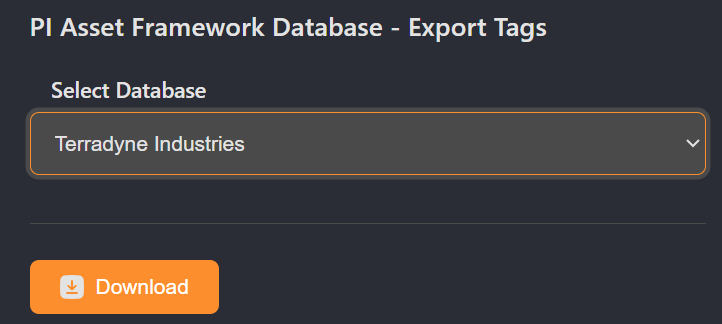
Step 1: Select Database
- From the "PI Asset Framework Database - Export Tags" section
- Click the database dropdown menu
- Choose the specific AF database you want to export
- Only databases you have access to will appear in the list
Step 2: Initiate Export
- Click the "Download" button to start the export process
- The system will begin processing your request
- Processing time varies based on database size and complexity
Step 3: Download Results
- Once processing is complete, a download link will appear
- Click "Download CSV" to save the file to your local system
- The file will contain all tag and metadata information from the selected database
PI Vision Server Export
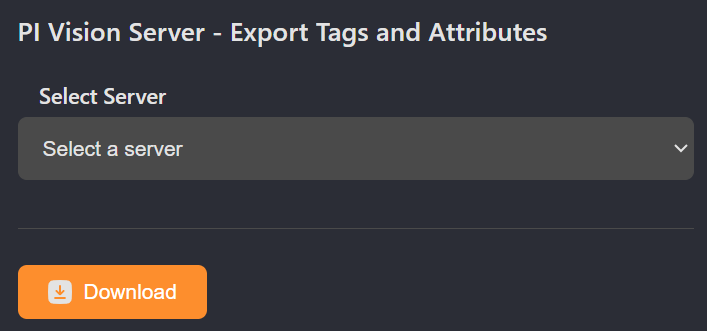
Step 1: Select Server
- From the "PI Vision Server - Export Tags and Attributes" section
- Click the server dropdown menu
- Choose the PI Vision server you want to export from
- Only servers configured in your domain will be available
Step 2: Initiate Export
- Click the "Download" button to begin processing
- The system will extract tags and attributes from the selected server
- Processing time depends on the amount of data and server response time
Step 3: Download Results
- A download notification will appear when processing is complete
- Click "Download CSV" to save the exported data
- The file will include all relevant tags and attributes from the Vision server